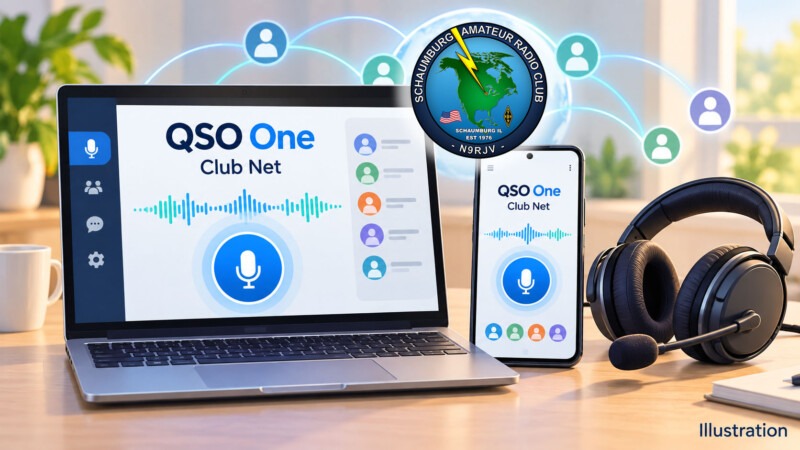
Here is a practical operating idea for SARC members: try your next club net from a Windows computer or Android phone. QSO One brings several amateur radio voice networks into one free app, offering another way to stay involved when you are away from your station.[1]
Post idea from: Paul Burkett, KD9FMN.
Topic Snapshot
| Item | Details |
|---|---|
| Subject | Ham radio without the hardware. |
| Post idea | Paul Burkett, KD9FMN. |
| Audience | SARC members, visitors, new hams, the public, operators, and volunteers. |
| App cost | Free; the developer accepts optional donations.[2] |
| Available platforms | Windows 10 or 11, 64-bit; Android 8.0 or newer. iOS, macOS, and Linux are listed as coming soon.[3] |
| Basic needs | A supported device, internet access, microphone and listening audio, a valid amateur radio license and callsign, and the credentials required by your chosen network.[2][3] |
| Official starting point | Download QSO One. |
| Call to action | Try QSO One on your next net. |
What Does “Without the Hardware” Mean?
QSO is amateur radio shorthand for a contact or conversation. QSO One carries voice over the internet to supported amateur radio systems. The developer says you can use these connections without owning a Raspberry Pi node, radio interface, or digital hotspot.[1]
Your computer or phone handles your microphone and received audio. When the destination is connected to a repeater, your conversation can reach operators using radios. That makes a little preparation worthwhile: choose the correct destination, listen first, and check your audio before joining a busy net.
The website promotes setup in about five minutes. Treat that as an estimate. Network registration, license validation, and the destination’s access settings can add steps before your first contact.[1][5][6]
One App, Several Ways to Connect
These choices serve different networks. A node is a connection point. A talkgroup is a shared conversation group. A reflector distributes voice among connected stations.
| Connection | What it offers |
|---|---|
| AllStarLink | Connections to voice nodes using Node Mode or Web Transceiver Mode. |
| EchoLink | Connections to participating stations, repeaters, and conferences, with direct and proxy options. |
| IAX Direct | A direct voice connection to an AllStar server using credentials its operator supplies. |
| DMR | Digital Mobile Radio access through BrandMeister or TGIF, with talkgroup selection. |
| System Fusion | Digital voice through Yaesu System Fusion (YSF) reflectors. |
| M17 | An open digital voice system with reflector and module selection. |
For a first SARC attempt, start with the club’s listed AllStarLink or EchoLink connection. Explore the other networks after you have a comfortable audio setup.
Get Your Accounts Ready
Start with Your Callsign
QSO One’s signup instructions use your email address and callsign. Its developer requires a valid amateur radio license to operate. Some networks also require their own account or identifier, such as a DMR ID.[2]
If you are visiting SARC and do not yet have a license, ask a member to demonstrate the app and explain the licensing path. You can learn the operating sequence before setting up your own account.
Choose the Correct AllStarLink Mode
Node Mode uses your own registered AllStarLink node number and credentials. WT Mode, short for Web Transceiver Mode, uses an AllStarLink portal account without requiring an assigned node number. The destination must permit that access method; some nodes disable WT connections.[4][5]
SARC’s node number identifies your destination. For Node Mode, enter the credentials for your own node, then select SARC as the station you want to reach.
Alternatively, IAX Direct needs a server address, port, username, password, and destination node number supplied or confirmed by the node operator. Ask whether SARC offers that option before configuring it.[7]
Complete EchoLink Validation
EchoLink requires proof of license before granting access. A QSO One account does not complete that separate validation. Follow the current EchoLink Validation instructions before your first net.[6]
Find SARC’s Connections
The SARC Repeaters page lists the following information. Check that page for updates and confirm that your intended internet connection is available before the net.[8]
| System | Published details | How to use this information |
|---|---|---|
| K9IIK/R, 2-meter FM | 145.230 MHz; −600 kHz offset; PL 107.2 Hz. | These settings are for a radio. In the app, choose a listed internet connection below. |
| AllStarLink | Node 27833. | Select it as the destination after configuring your own access method. |
| EchoLink | K9IIK-R, node 575848. | Find this station using your validated EchoLink account. |
| 70-centimeter FM / System Fusion | 442.275 MHz; +5 MHz offset; PL 114.8 Hz; default WIRES-X room IL-K9IIK-ROOM / 40294. | Ask the repeater team about any compatible YSF bridge before trying app access to this system. |
PL is the repeater’s access tone; the offset describes the difference between its receive and transmit frequencies. Those are radio settings. App connections use network destinations and account details.
YSF and WIRES-X Need Separate Attention
QSO One documents System Fusion access through YSF reflectors. Yaesu distinguishes those reflectors from its WIRES-X network. SARC’s published WIRES-X room number therefore does not establish a QSO One connection to that room. Ask the repeater team whether a compatible bridge exists and which destination to select.[4][10]
How to Participate in Your First Net
A net is an organized on-air gathering. Net control guides the conversation and invites stations to check in.
- Install from the official source. Follow Download QSO One to the supported store or direct installer. Check current platform requirements before installing.[3]
- Prepare your accounts early. Complete the registrations and validation needed for the network you plan to use.
- Check the schedule. Use SARC Nets to confirm the time and any exceptions.
- Choose one SARC connection. Try AllStarLink node 27833 or EchoLink K9IIK-R, node 575848, when available.
- Check microphone and listening audio. A headset is a useful choice for keeping received sound out of your microphone. Arrange a brief audio check with another operator before the net.
- Listen before transmitting. Learn the check-in procedure and wait for an invitation or a suitable opening.
- Use push-to-talk carefully. PTT means push-to-talk. Activate it, pause briefly, give your callsign clearly, and release it when finished. Leave a pause between exchanges.
- Follow net control. Keep your first check-in short. Afterward, note what worked and ask for help with any remaining audio or connection issue.
For newer operators, SARC lists a Wednesday New Ham Net at 7:00 p.m. Central Time on the 2-meter repeater, with the same EchoLink and AllStarLink identifiers. The club also lists its Thursday net at 8:00 p.m. local time, except the third Thursday of the month. Confirm the current schedule before joining.[9]
flowchart TD
    accTitle: Preparing for a first SARC net with QSO One
    accDescr: Choose a supported device, prepare network credentials, and select a published SARC destination. If a connection fails, review access with the operator. After connecting, listen and check audio before checking in.
    A["Supported device and network credentials"] --> B["Select SARC AllStarLink or EchoLink destination"]
    B --> C{"Connection accepted?"}
    C -- "No" --> D["Review credentials and destination access"]
    D --> B
    C -- "Yes" --> E["Listen and arrange an audio check"]
    E --> F{"Audio clear?"}
    F -- "No" --> G["Adjust microphone or listening device"]
    G --> E
F -- "Yes" --> H["Check in when net control invites"]If Something Does Not Work
First, identify where the problem occurs: signing in, connecting, hearing audio, or being heard. That gives the person helping you a useful starting point.
If an AllStarLink connection is refused, check your authentication mode and whether the destination permits it. For EchoLink, confirm validation is complete. For IAX Direct, confirm the operator-issued connection details.[5][6][7]
If you can hear others but they cannot hear you, check microphone permission, the selected input device, and PTT operation. Ask another operator for a short audio report when the channel is free.
Suggested SARC Goals
| Participant | Suggested goal | Useful result |
|---|---|---|
| Newly licensed ham | Prepare one connection and check in to the New Ham Net. | Build confidence giving your callsign and following net control. |
| Experienced member | Help one member complete setup and an audio check. | Make another operator comfortable participating. |
| Member away from home | Try a club connection before the scheduled net. | Learn how your device and internet connection perform. |
| Net control operator | Invite brief audio feedback for a first-time app user. | Help the operator improve clarity and timing. |
| Public-service volunteer | Practice concise check-ins using both your app and usual radio setup. | Gain experience with different access paths. |
| Visitor or prospective ham | Ask for a member-led demonstration. | Understand the app, licensing, and club participation. |
Give It a Try
Start small. Choose one network, prepare your credentials, and make one clear check-in. Then share what you learned with another SARC member.
Thanks to Paul Burkett, KD9FMN, for suggesting this operating idea. Visit QSO One, review SARC Repeaters, and confirm the time on SARC Nets.
Try QSO One on your next net.
Try QSO One on your next net.
References
- QSO One: Ham Radio Without the Hardware. One Free App. Publisher: QSO One. Accessed October 9, 2026. URL: https://qso1.net/. ↩
- QSO One Is Now Free: One App for AllStarLink, EchoLink, DMR, System Fusion, and M17. Publisher: QSO One. Published July 19, 2026. Accessed October 9, 2026. URL: https://qso1.net/updates/qso-one-is-now-free. ↩
- Get QSO One. Publisher: QSO One. Accessed October 9, 2026. URL: https://qso1.net/download. ↩
- Features. Publisher: QSO One. Accessed October 9, 2026. URL: https://qso1.net/features. ↩
- External Applications. Publisher: AllStarLink Manual. Accessed October 9, 2026. URL: https://allstarlink.github.io/user-guide/externalapps/. ↩
- Validation. Publisher: EchoLink. Accessed October 9, 2026. URL: https://www.echolink.org/validation/. ↩
- Connecting QSO One to a Node with IAX Direct. Publisher: QSO One. Accessed October 9, 2026. URL: https://qso1.net/guides/iax-direct. ↩
- Repeaters. Publisher: Schaumburg Amateur Radio Club. Accessed October 9, 2026. URL: https://www.n9rjv.org/repeaters/. ↩
- Nets. Publisher: Schaumburg Amateur Radio Club. Accessed October 9, 2026. URL: https://www.n9rjv.org/info/nets/. ↩
- FTM-300DR: Frequently Asked Questions on WIRES-X and Hotspots. Publisher: Yaesu. Accessed October 9, 2026. URL: https://www.yaesu.com/product-detail.aspx?CatName=Legacy&Model=FTM-300DR. ↩